
Quick Answer
- Gmail: true end-to-end encryption (E2EE) exists, but only for Google Workspace Enterprise Plus with the Assured Controls add-on. Personal Gmail has no native end-to-end encryption and the “Confidential mode” is not encryption.
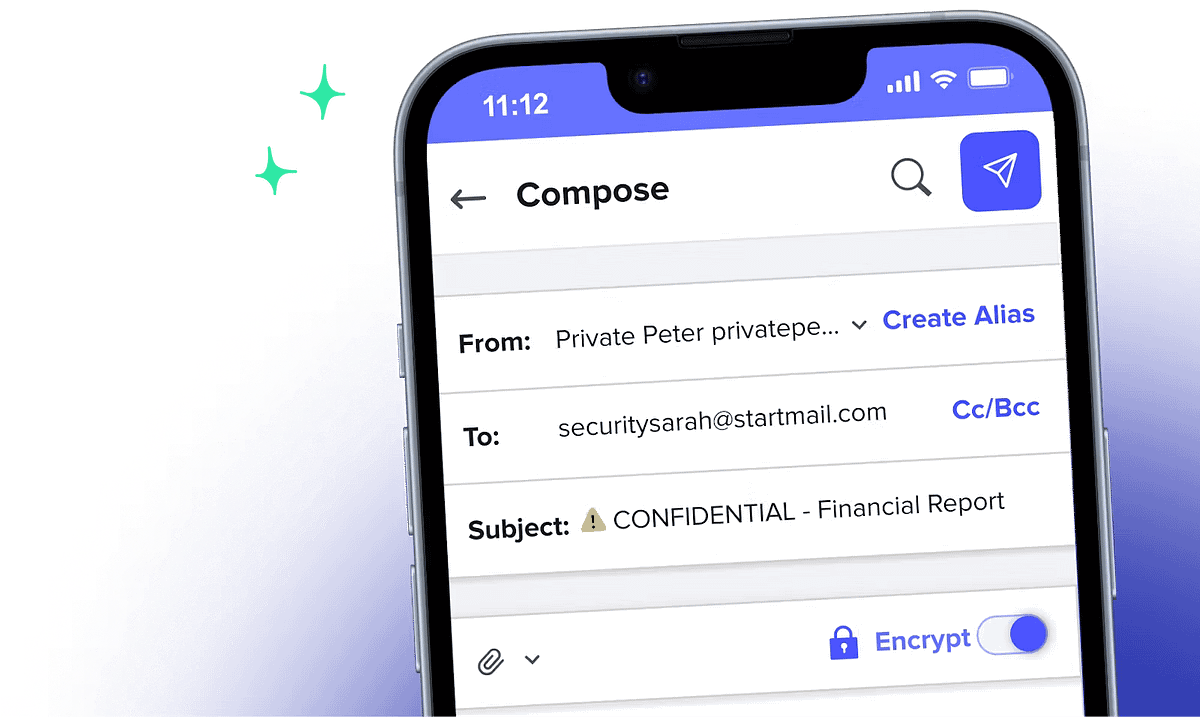
- For most people, the easiest way to use encrypted email is to use a service like Proton Mail.
- If the subject line itself is sensitive: use Tuta. It’s the only mainstream provider that encrypts subject lines.
- Outlook: you need a Microsoft 365 subscription. Personal/Family gets the “Encrypt” and “Do Not Forward” buttons (portal-based, Microsoft holds the keys). Work/school accounts get Purview Message Encryption plus real S/MIME.
- iPhone: Apple Mail supports S/MIME natively. This is encryption that ensure your email isn’t altered while in transit. However, you must install a certificate manually and get the recipient’s public key first.
Gmail
There is still no native end-to-end encryption in Gmail in 2026.
Confidential mode isn’t encryption. It sets an expiry date and hides the forward/print/copy buttons. Google holds the message, Google can read it, and a determined recipient can screenshot it.
You can receive E2EE messages sent from an enterprise Gmail account — you just can’t create them yourself.
Google Workspace: Gmail E2EE (client-side encryption)
Google’s real E2EE runs on client-side encryption, where your organization holds the keys outside Google’s infrastructure. The 2025–2026 rollout made it genuinely usable:
- October 2025: Workspace users could send E2EE mail to any recipient, on any provider.
- April 2026: E2EE arrived natively in the Gmail apps for iOS and Android — no companion app, no portal for Gmail-app recipients.
How to send one:
- Your admin enables the Android/iOS clients in the CSE admin interface in the Google Admin console.
- Compose a message in Gmail (web or mobile app).
- Tap the lock icon and choose Additional encryption.
- Write the message and attach files as normal.
Recipients using the Gmail app see it as an ordinary thread. Everyone else gets a secure browser view where they can read and reply.
The catch: this requires “Workspace Enterprise Plus with Assured Controls” or Assured Controls Plus.
Bolting PGP onto Gmail (the DIY route)
If you’re on personal Gmail or a cheaper Workspace tier and genuinely need E2EE, browser-based PGP is the workaround:
- Mailvelope — open-source browser extension, works inside the Gmail web UI, handles key generation and a public keyserver lookup.
- FlowCrypt — Gmail-focused, friendlier onboarding, has mobile apps.
Outlook
Outlook has the most options and the most confusing labeling. Which buttons you see depends entirely on your account type.
Personal / Family subscribers
- Compose a new message.
- Open the Options ribbon.
- Select Encrypt, then pick:
- Encrypt — the message stays inside Microsoft 365. Outlook.com and M365 recipients read it normally; everyone else uses a one-time passcode in the Message Encryption portal.
- Do Not Forward — same, plus copy/forward/print blocked, and Office attachments stay protected after download.
- To undo it, choose No permission set.
Microsoft manages the keys. It’s excellent protection against the recipient’s provider being sloppy, and against accidental forwarding. It is not protection against Microsoft or a legal request. There’s also no revoke, no expiry, and no audit trail on consumer plans.
iPhone
Apple Mail with S/MIME
Apple Mail has supported S/MIME on iOS for years. It works well once configured, and the configuration is the whole problem.
Step 1 — Get your certificate onto the phone. Export your identity as a .p12 file (with a password — iOS insists on one) and get it to the device via AirDrop, iCloud Drive, or by emailing it to yourself.
Step 2 — Install the profile. Tap the file, then go to Settings → General → VPN & Device Management and install the downloaded profile. You’ll enter your passcode, then the .p12 password. If it shows “Not Signed” in red, that’s normal here.
Step 3 — Turn it on for the account.
Settings → Apps → Mail → Accounts → [your account] → Account → Advanced → S/MIMEEnable Sign, and Encrypt by Default if you want it always on. (On iOS 17 and earlier the path starts at Settings → Mail.) If your certificate shows as untrusted, you almost certainly left the intermediate certificates out of the .p12.
Step 4 — Get the recipient’s public key. This is the part people miss. On an Exchange account, iOS pulls certificates from the GAL automatically and the lock icon just appears. Otherwise you must exchange signed messages first: open a signed email from them, tap the sender’s address, tap View Certificate, then Install, then Done. Only after that can you encrypt to them.
Step 5 — Send. Tap the blue lock in the address field to toggle encryption per message. Replies and forwards inherit the encryption state of the original, not your default setting — a genuinely useful behaviour that catches people out in the other direction. ⚠️ The iOS 26 certificate bug — check this before you blame yourself
The much easier iPhone route
Install Proton Mail or Tuta. Encryption is automatic between users of the same service, works identically on iOS, Android, and web, and requires zero certificate wrangling. For messaging a non-user, both offer a password-protected message that the recipient opens in a browser.
And the obvious one: if you and the other person are both on iPhones, Signal or iMessage is end-to-end encrypted by default and takes no setup at all. A surprising share of “I need encrypted email” problems are actually “I need a private channel” problems.