MySudo is a service that allows you create virtual identities with their own phone number and email. We explained this service in a previous article.
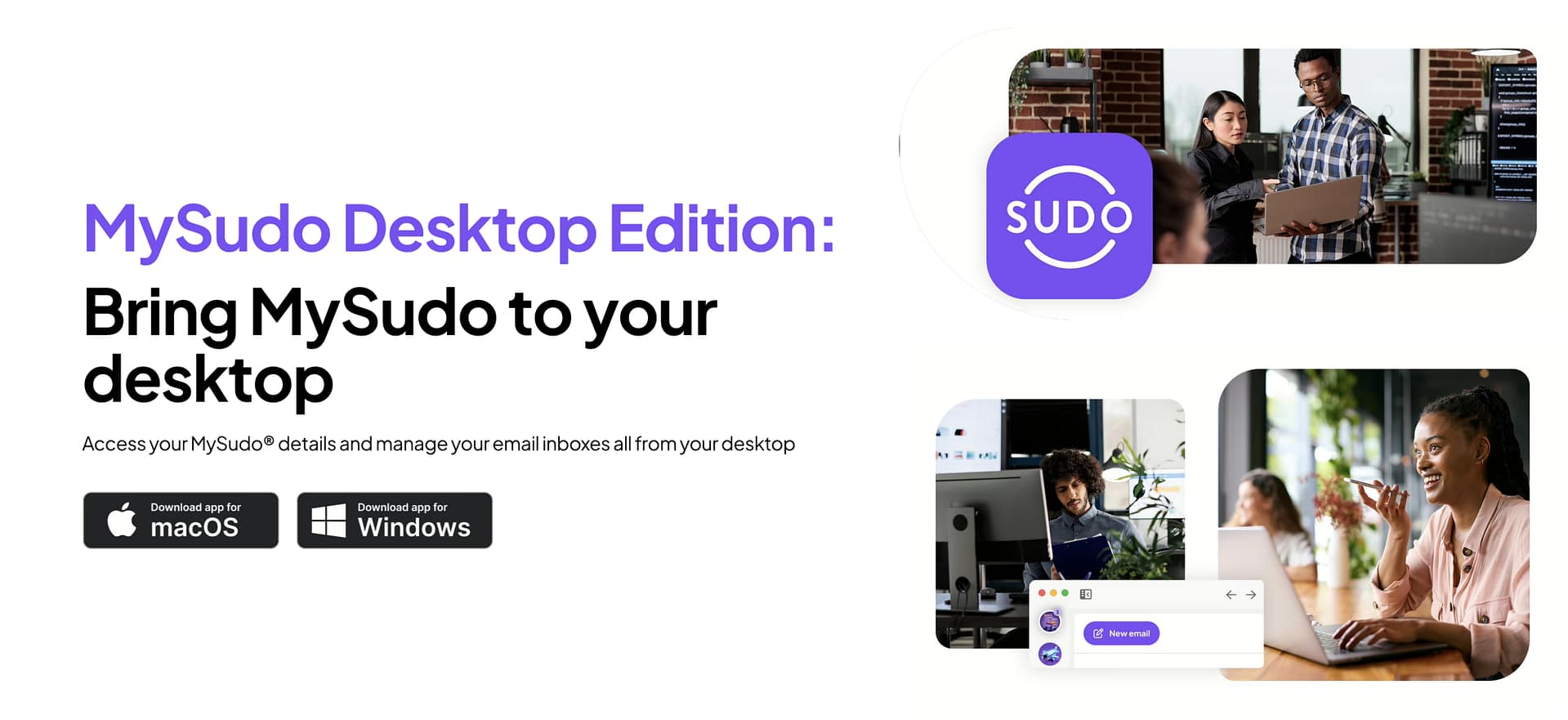
Now, the developer (Anonyome Labs) has released a desktop companion to the mobile app. It’s available on Mac and Windows.
You can access your Sudo profiles (separate identities with their own email and numbers) on a larger screen when you are away from your phone.
In this first release, the desktop app focuses on email: you can send and receive encrypted email to other MySudo users and regular email to everyone else.
Other new features:
- Mark as spam – Quickly flag unwanted or suspicious emails so MySudo can filter similar messages in the future.
- Block senders – Take control of who can reach you by blocking specific senders for good. This stops repeat scams, harassment, or unwanted messages.
How Setup and Linking Works
You download MySudo Desktop from the Apple App Store (for Mac) or Microsoft Store (for Windows). Then follow these steps:
- Open the MySudo mobile app on your phone.
- Tap the Sudo profile icon in the top left corner → tap the Settings icon in the bottom left corner.
- Tap Link desktop app → Link MySudo Desktop → scan the QR code displayed on your desktop.
That QR code refreshes every 30 seconds. After linking, your Sudos sync so you can use the same digital identities on desktop without creating a traditional username or password for the desktop app.